What changes at the screen
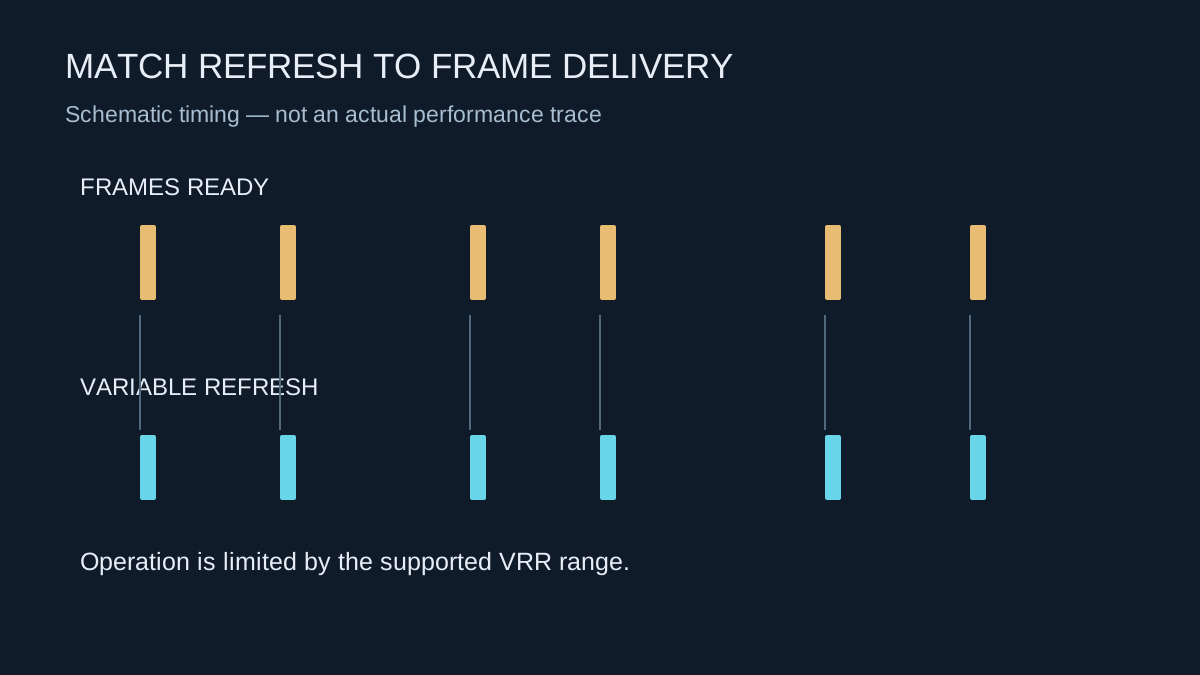
With a fixed refresh rate, the screen follows a regular refresh schedule. Variable refresh rate allows a compatible display to adjust its refresh timing in response to incoming frames. This can reduce tearing and the uneven presentation associated with mismatched timing. It does not make the game generate frames faster.
A game that runs slowly because of its rendering workload still has that workload. VRR can improve how supported frame rates are presented, but it is not a replacement for the game's performance mode or a fix for every long pause. Keep that distinction in mind when comparing settings.
Confirm support across the connection
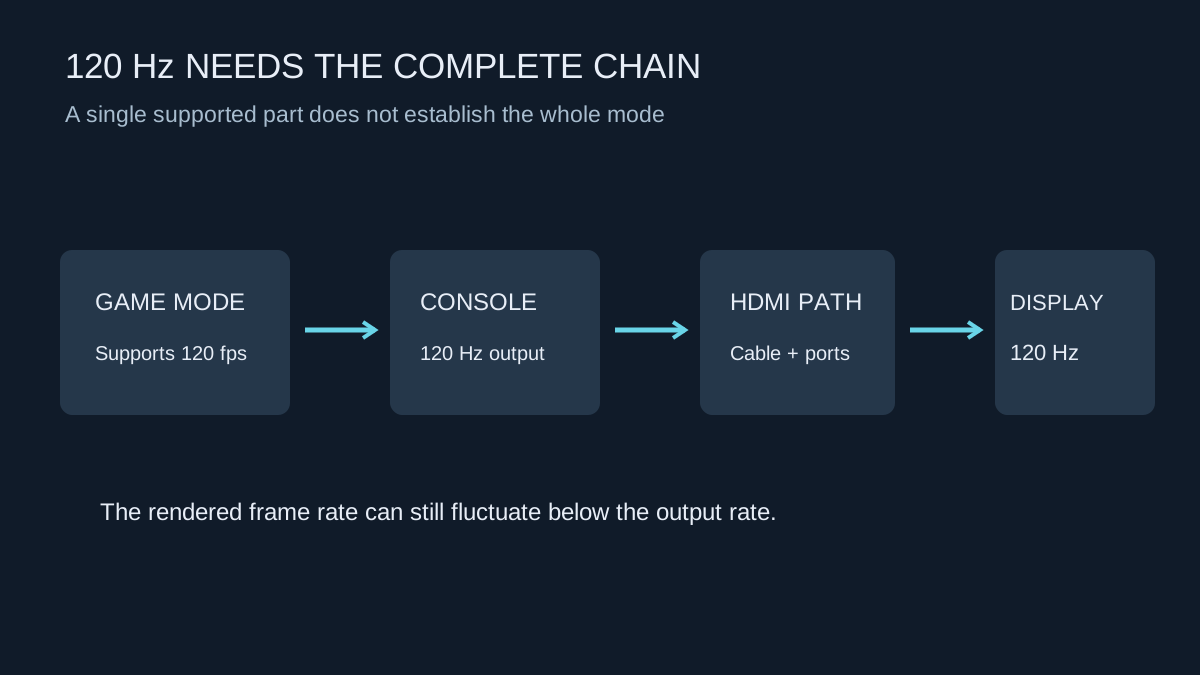
Check the exact console, display input and signal mode. A monitor may advertise a variable-refresh technology that works over a different connection or with a different source than your console. The product name alone is not enough; consult the compatibility information for the intended resolution and HDMI path.
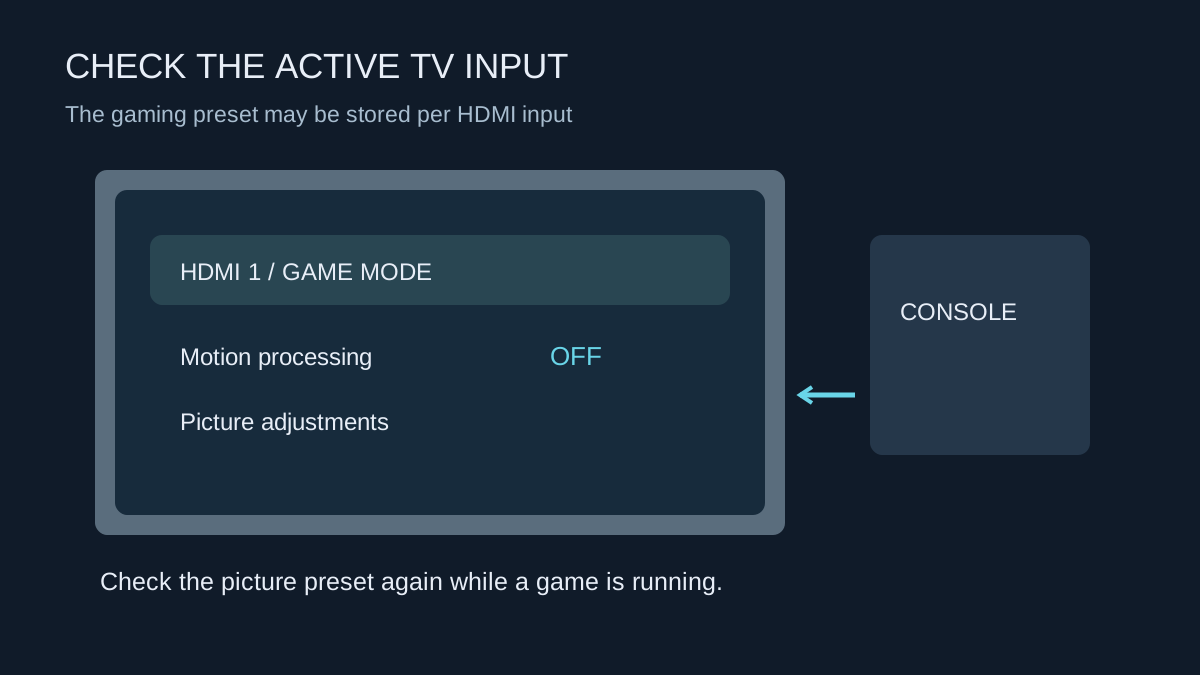
Receivers, switches and capture devices can change what reaches the display. If VRR is unavailable through an intermediary, compare a direct connection. Update supported firmware where the manufacturers recommend it, and use the appropriate display input setting. Record the working combination instead of relying on a label printed on a cable.
VRR has an operating range. Behaviour below or above that range depends on the equipment and game. A display's incoming-refresh counter may also behave differently from an actual rendered-frame counter. Do not use one number to conclude that the game suddenly doubled its performance.
Compare a familiar difficult scene
Pick a section where motion previously looked uneven and compare VRR on and off without changing the graphics mode. Look at camera movement, tearing and any new flicker. Keep the TV's other picture settings consistent. A menu with a static background is unlikely to reveal the difference you care about.
On PS5, an option can apply VRR to games without explicit support. Sony advises switching that option off if unexpected behaviour appears. Test a problematic title separately rather than assuming the setting must remain on for every game.
If brightness fluctuates or dark areas flicker, check the display manufacturer's guidance for that specific model. Do not compensate by changing unrelated HDR values until you have established whether the behaviour tracks the VRR setting.
Keep a useful fallback
Save a stable fixed-refresh configuration as a comparison. It may suit a particular game better, especially if that game's frame delivery or the display's behaviour creates an unwanted trade-off. There is no need to treat a supported feature as compulsory.
For a new display purchase, confirm the desired combination of resolution, refresh rate, HDR and VRR. Support for those items separately does not necessarily mean every combination is available. Test the actual game modes you plan to use, then keep the settings that improve motion without introducing another distracting problem.