Trace the audio path
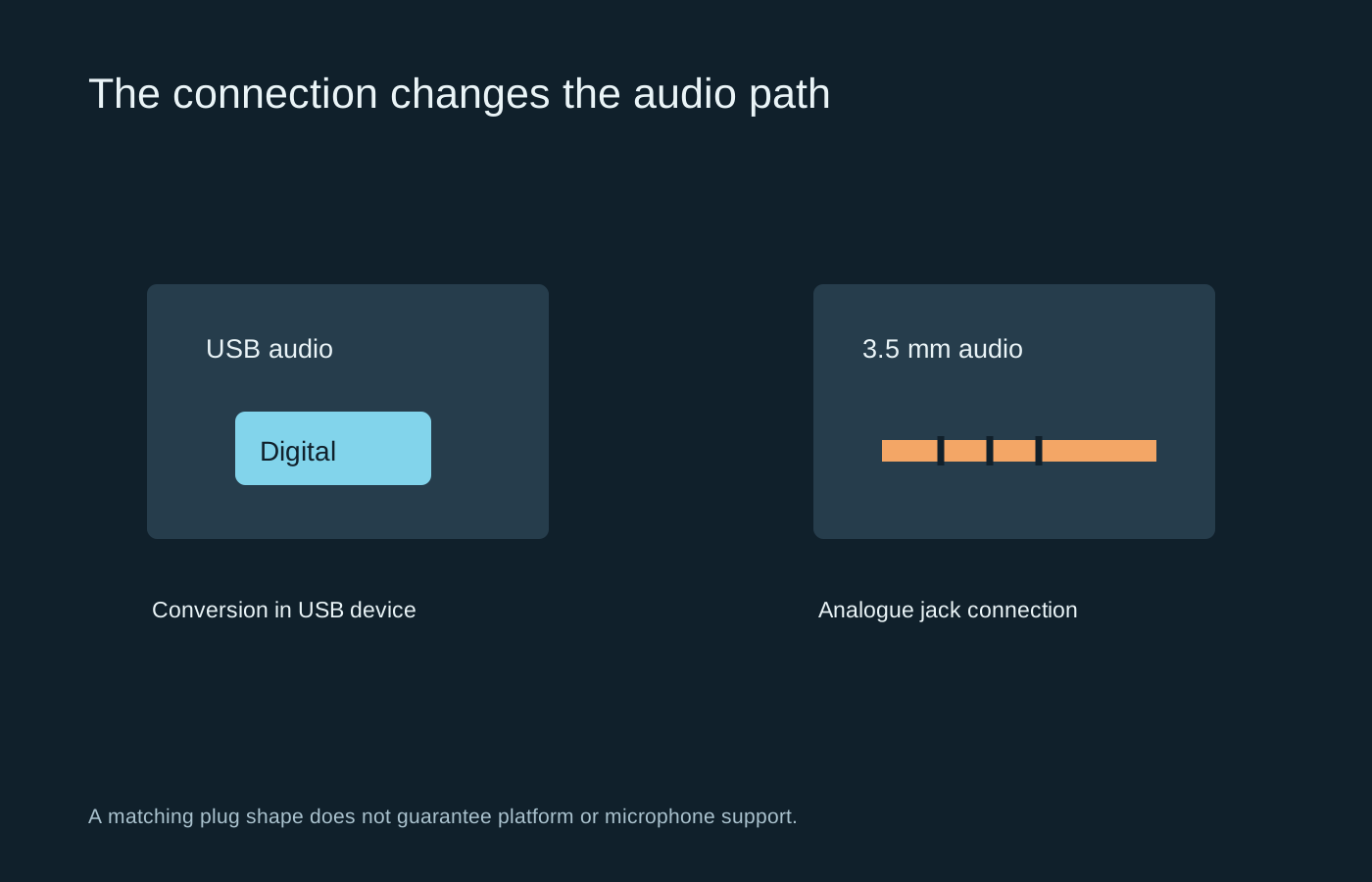
A USB headset receives digital audio and handles conversion within its own electronics or supplied USB adapter. An analogue 3.5 mm headset uses the sound hardware of the device it is plugged into. That difference can change available controls, microphone behaviour and compatibility without making either connection inherently superior.
Start by listing the devices you want to use. A gaming PC, controller headset socket and console USB port are not interchangeable audio destinations. The fact that a USB plug physically fits a port does not prove that the console supports that headset. Check the exact model and connection mode in the manufacturer’s compatibility information.
Count the contacts and sockets
A single combined headset plug commonly carries headphone and microphone connections together. Some desktops instead provide separate headphone and microphone sockets. That arrangement may need a suitable headset splitter, not a simple headphone-sharing adapter. Those accessories perform different jobs despite looking similar.
Read the socket symbols and the manual. A microphone input is not a headphone output, and a line-level input is not automatically suitable for a headset microphone. If you can hear sound but cannot record speech, inspect the connection arrangement before changing every software setting.
Detachable cables can introduce another mismatch. The socket at the headset end may have a particular shape, wiring or locking mechanism. A cable that fits loosely or carries only stereo sound can leave the microphone disconnected. Use the specified replacement rather than assuming all 3.5 mm cables have the same purpose.
Features may depend on the connection
Software equalisation, virtual surround and firmware control may require a USB connection or a particular adapter. Corsair, for example, distinguishes its software support for USB devices from ordinary analogue connections. An analogue headset plugged into the computer’s sound card will generally be controlled through that sound hardware instead.
A headset with several modes can therefore behave differently when moved between devices. Check whether the microphone, mute control and volume wheel work in the intended mode. Also confirm whether a battery is required for analogue operation on the particular model; the presence of a cable does not answer that question.
Troubleshoot from a plain baseline
Choose the intended output and input devices in the operating system and in the game or chat application. Start with ordinary stereo playback and minimal processing. Play a familiar sound, then make a short microphone recording. Test those two directions separately.
If a supplied USB adapter is available, comparing it with the supported analogue connection can help locate a problem. Keep the headset and application settings otherwise unchanged. Crackling on one port, missing microphone audio on another and unwanted processing are different faults. Record which connection produces which symptom before buying an adapter that might only move the problem elsewhere.