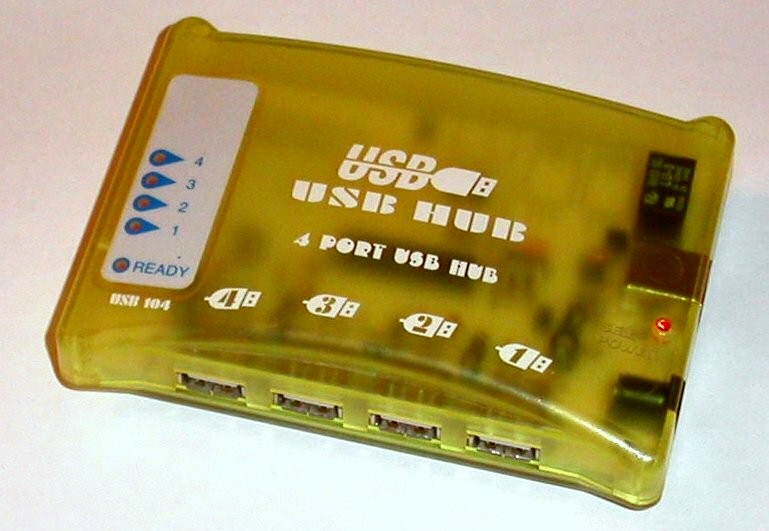
Four sockets do not create four independent links
A USB hub expands the number of devices you can connect, but the connected devices share the upstream link to the computer. A mouse and keyboard usually present a different workload from a capture card or fast external drive. Count the devices you intend to use at the same time, then identify which ones transfer substantial data and which mainly need a connection for input or charging.
Read the hub's data specification, not just the shape of its plug. USB-C describes a connector, while the supported data rate and other capabilities depend on the product. A hub with a USB-C lead can still provide limited data bandwidth. Likewise, a charging port may not carry data at all. Check each port's role in the manufacturer's diagram.
Work out the power arrangement
A bus-powered hub draws power through the computer connection. A self-powered hub uses a separate supply, but that does not mean every downstream port can provide whatever a device requests. Read the total and per-port limits and use the specified power adapter. Charging passthrough to a laptop is another function and should not be confused with the power available to peripherals.
List anything that charges while connected, such as controllers or a wireless headset. If several devices disconnect when another starts charging, test them separately and compare the hub's supported arrangement. Do not substitute an arbitrary power supply because its plug fits. Voltage, polarity, connector and supported power behaviour all matter.
Put sensitive connections in the right place
For initial troubleshooting, connect a problematic device directly to the computer. That removes the hub and its cable from the path. If the direct connection works, reintroduce one device at a time and check the hub documentation. A high-bandwidth capture device may specify a direct connection or particular USB capability that a convenient desk hub cannot provide.
Wireless receivers can also benefit from thoughtful placement. Avoid burying a receiver behind a metal case or a dense bundle of cables, and use the peripheral maker's recommended extension arrangement where supplied. Do not assume that every dropout is caused by insufficient USB speed; radio reception and power are separate possibilities.
Test the busy version of your setup
Check the hub with the devices doing their normal jobs simultaneously. Record while the webcam is active, use the microphone while charging the controller, or copy a file while the other peripherals remain connected. A successful idle connection is only part of the test. If something fails, simplify the combination and record exactly which activity triggers it. Buy the hub for the supported workload you need, with enough accessible ports, rather than choosing the model with the largest socket count.