Define the slowdown first
Describe where performance is inadequate: everywhere, in crowded scenes, while travelling into new areas or only after a long session. Note the resolution, graphics settings, frame cap and whether the game is running from a repeatable save. These details are essential because the limiting task can change from one scene to another.
Check whether the frame rate is simply reaching a configured cap or a synchronisation limit. A GPU that is not fully occupied while the game sits at its intended cap is not automatically being held back by an unsuitable CPU. You may already be seeing the behaviour the settings requested.
Test the graphics workload
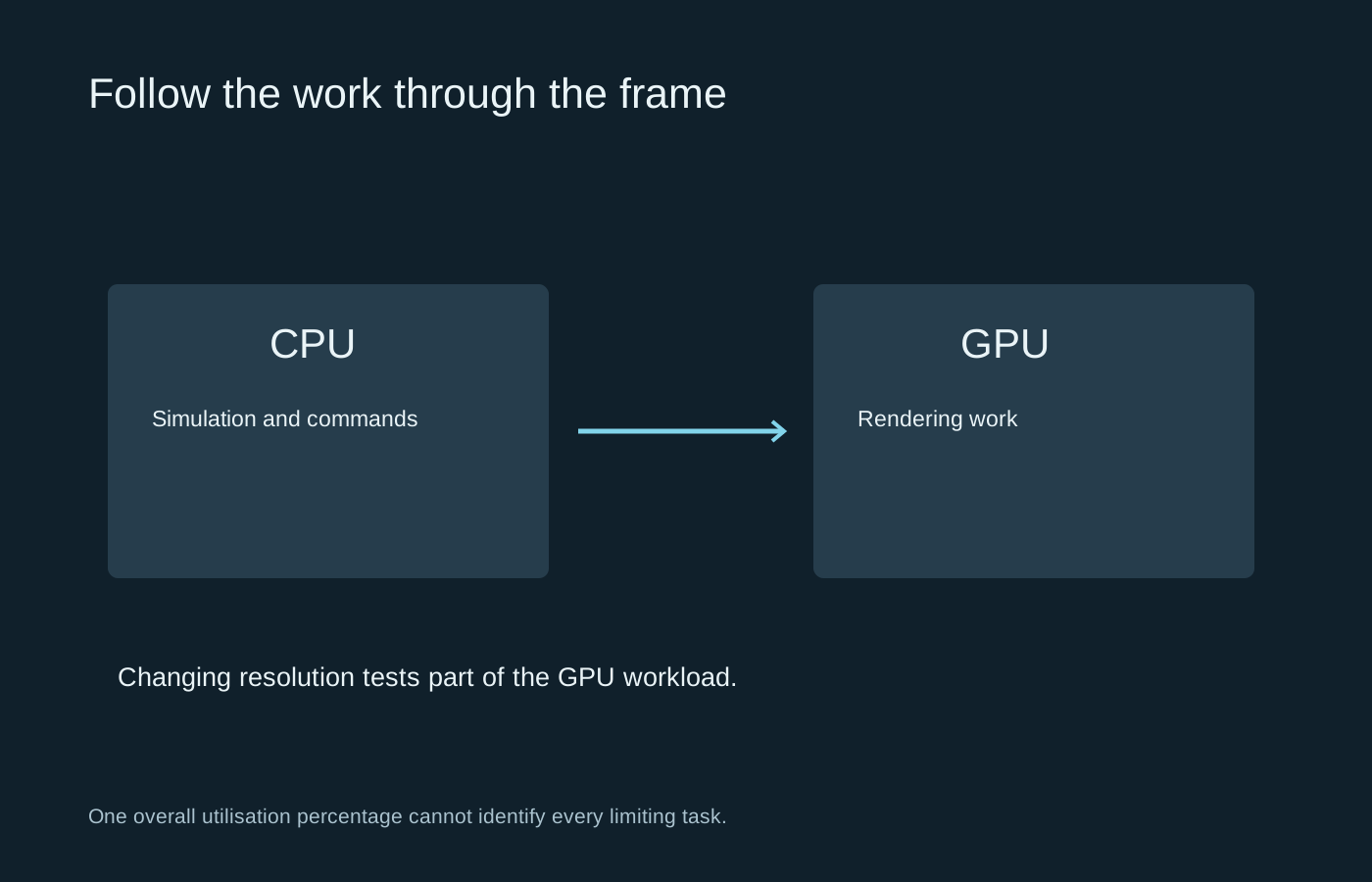
With the cap understood, reduce internal rendering resolution while keeping the same scene and other settings. A substantial improvement suggests that GPU rendering work was important to the limitation. Little change suggests looking elsewhere, but is not proof on its own that a new CPU is required.
Repeat the test. A different camera view, enemy count or background task can change the workload. Keep upscaling and frame generation accounted for so you know whether the measured counter represents the same kind of output in both runs.
Some settings affect more than one component. Draw distance, crowds and simulation options may alter CPU work as well as graphics work, while a named quality setting can behave differently between engines. Use the game’s explanation and controlled comparisons rather than treating an online list of CPU settings as universal.
Read utilisation with context
An overall CPU percentage averages activity across its available processing resources. A game can be limited by a busy thread without showing one hundred percent overall usage. Conversely, high usage can include background applications that are unrelated to the game. Inspect the process and timing context instead of interpreting the total alone.
GPU utilisation also needs context. A frame cap, loading pause, CPU dependency or measurement issue can leave the GPU waiting. Clock speeds, power behaviour and temperature can add useful evidence, but each sensor reading has its own meaning. Do not diagnose overheating solely because a component feels warm or reaches a number borrowed from another model.
Exclude a different kind of interruption
A hitch during asset loading may involve storage or memory pressure. Shader preparation can cause a different interruption. Network delay can make an online game feel unresponsive even when local rendering remains steady. Compare frame-time behaviour with the visible symptom before treating every pause as a graphics-card problem.
Close an unnecessary background workload and repeat the same scene. If performance degrades only after a while, inspect cooling and the manufacturer’s expected operating behaviour. Keep changes reversible and avoid aggressive overclocking as a diagnostic shortcut.
Upgrade only after the evidence points somewhere
Use measured tests and relevant game benchmarks to assess an upgrade. A generic bottleneck calculator cannot reproduce your games, settings, desired frame rate and background workload. The component that limits one scenario may not limit another.
Record the baseline, the changed setting and the result in a small comparison. If reducing resolution helps, you have one useful clue. If reducing simulation detail helps instead, you have another. Several consistent clues are stronger than a single percentage. The purpose is to identify a change that improves the play you care about, not to make every component display the same utilisation.