Listen to the pattern
A fan ramping up during a demanding scene is not the same symptom as a constant scraping sound. Note whether the noise follows graphics load, appears only during a cold start or continues at the desktop. A recording can help a support technician understand a mechanical sound, although a phone microphone will not produce a reliable loudness comparison between different PCs.
Check temperatures with a suitable monitoring tool and compare them with the component manufacturer's guidance. There is no single safe temperature number for every CPU and GPU. Also watch whether clock speeds or performance decline as the machine warms up. A high reading needs context: sensor type, load and the hardware's specified behaviour all matter.
Inspect the simple restrictions first
Make sure the case has clear intake and exhaust paths. A desk panel pressed against a vent, a blocked filter or a tower placed in a tight cupboard can make an otherwise adequate cooling arrangement struggle. Compare the layout with the case manual rather than assuming that every visible opening should have a fan attached.
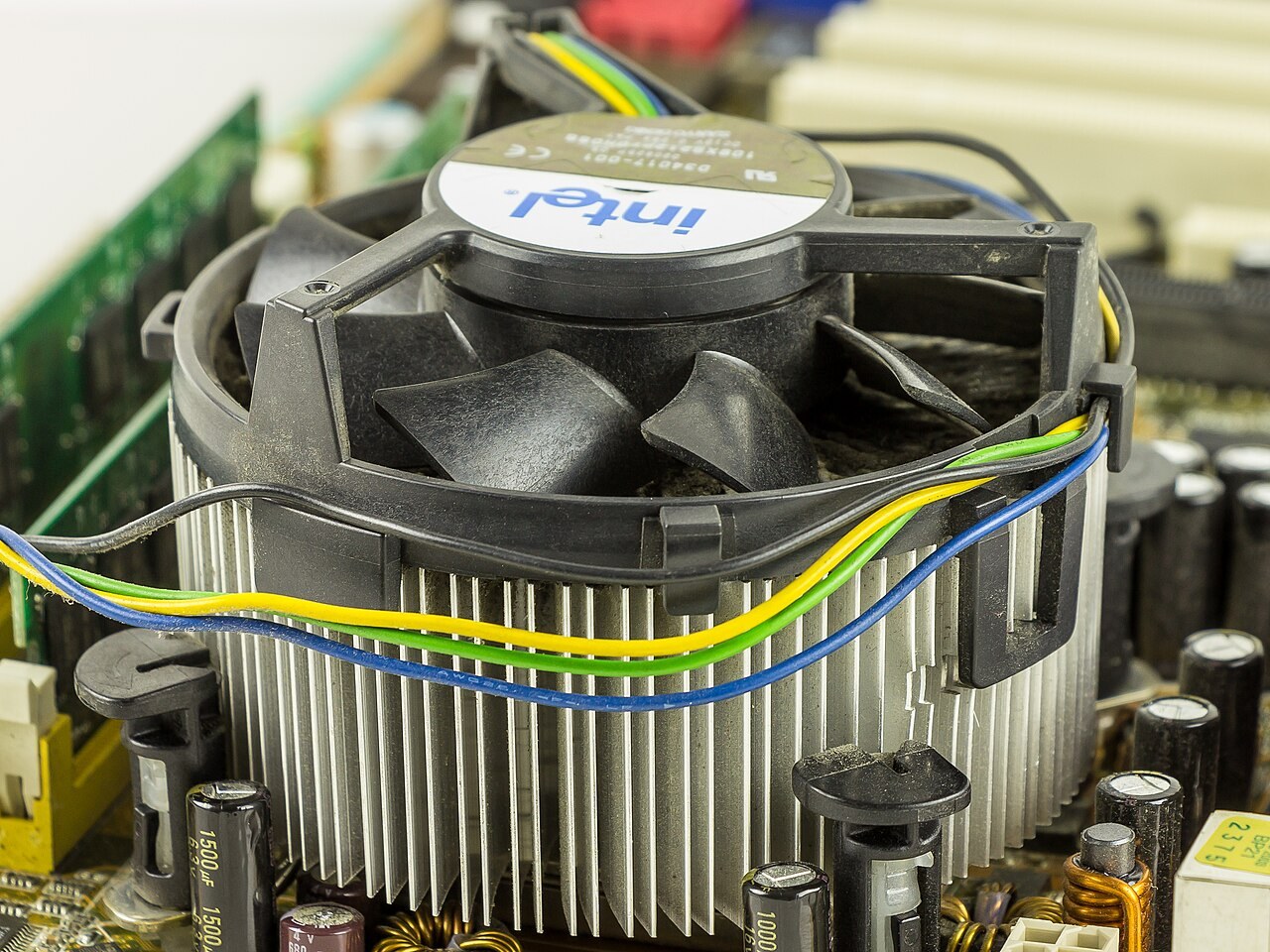
For cleaning or physical inspection, shut down, disconnect power and follow the equipment instructions. Keep liquid away from electronics and do not open the power supply. If a cable may be touching a fan, investigate with the machine safely powered off instead of reaching into moving blades.
A change in sound after moving the computer may come from a panel or cable vibrating against something nearby. Check accessible panels and external objects. Do not tighten every screw indiscriminately or dismantle a cooler without understanding its mounting procedure.
Separate airflow trouble from a new mechanical symptom
Suppose a tower becomes noisier after being moved into a narrow cupboard. If the same workload ran acceptably in its former open position, placement is an obvious variable to test first. Move it only after shutting down and managing the cables safely, then repeat the comparison. Buying a larger CPU cooler before checking the enclosure could leave the warmed air trapped in the same place.
A scraping or rattling sound is a different branch. Note whether it begins when a particular fan starts, whether an external object touches the case and whether the sound changes with a normal fan-speed adjustment. Do not stop a spinning fan with a finger or tool to identify it. Use powered-off inspection or a technician when the source is inaccessible.
An electrical whine that changes with frame rate may not be a fan at all. Describe the behaviour to the hardware supplier and ask about the relevant support options. Replacing fans would be an expensive guess if the sound comes from another component. Keep overheating warnings, burning smells or repeated unexpected shutdowns out of an ordinary acoustic-tuning exercise; those call for stopping use and appropriate assessment rather than continuing a long comparison.
Tune only after identifying the cause
A quieter fan profile can raise temperatures, and a more aggressive one can increase noise without fixing restricted airflow. Change one profile at a time, then repeat the same workload for long enough to reach a comparable operating condition. Keep a note of the original setting.
If overheating warnings, repeated shutdowns or a damaged fan are present, stop treating the problem as cosmetic noise. Arrange appropriate service. Avoid masking the warning with a frame cap and declaring the fault solved. For a healthy system that is merely louder than you prefer, a sensible frame limit may reduce unnecessary rendering work, but test its effect on both noise and the playing experience.