Draw the route before adding fans
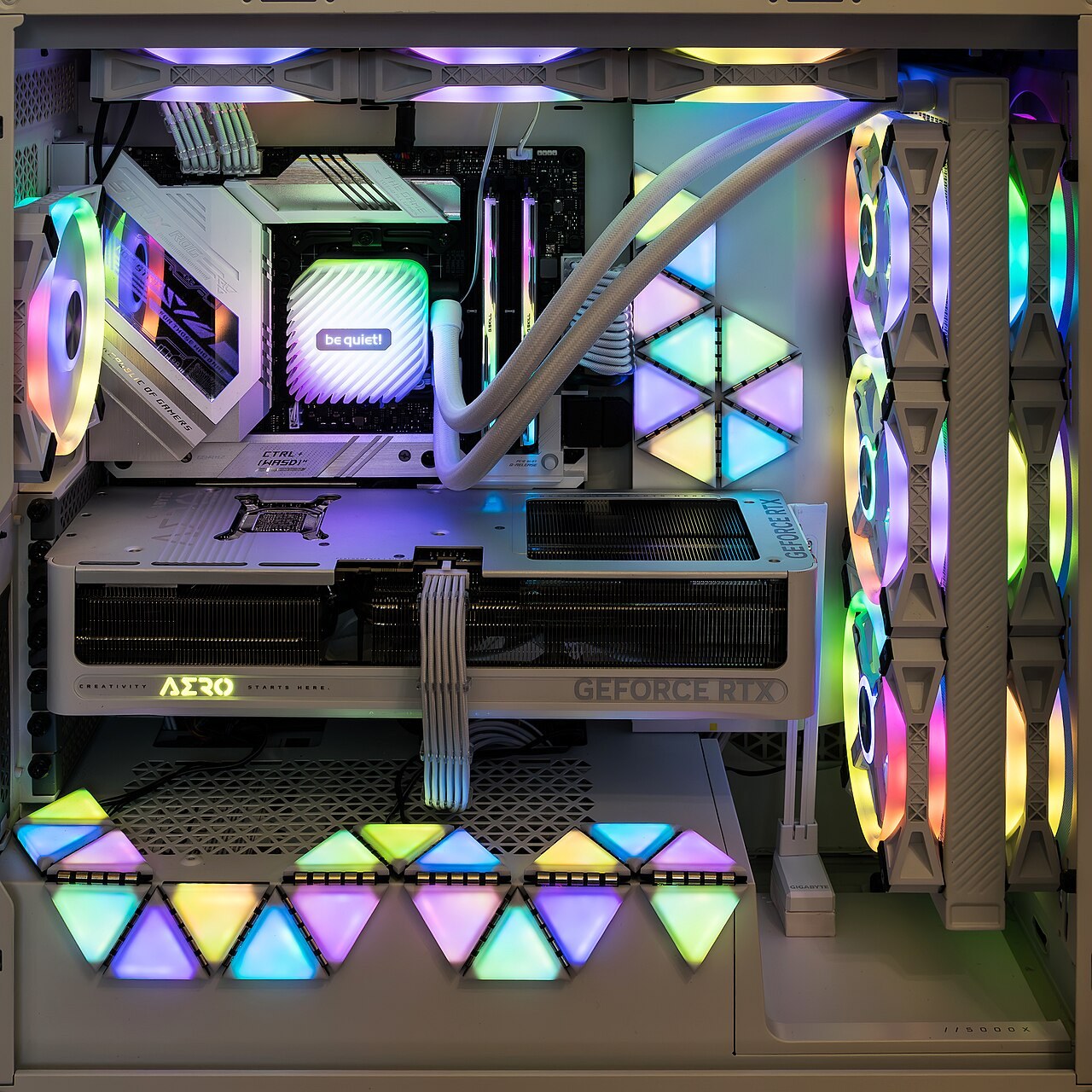
Start with the case manual and identify its intended intake and exhaust positions. A front-to-back path is common, but case layouts vary. Glass panels, bottom intakes and radiator mounts can alter the useful route. Copying another build's fan arrangement without checking the chassis may put fans where they have little access to outside air.
Look for obstructions on both sides of a vent. A clear interior does not help an intake pressed against a wall or thick carpet. Keep cables from interfering with fans and use the case's supported mounting positions. A tidy cable route is useful when it clears the air path; appearance alone is not evidence of better cooling.
Confirm direction rather than guessing
Fan frame arrows, where provided, show rotation and airflow direction. The appearance of the blades or decorative lighting is a less reliable guide, particularly with reverse-blade products. Check the exact model's documentation before deciding which way to install it.
A radiator adds resistance and changes how a fan arrangement behaves. Filters and grilles do too. Counting three intake fans and two exhaust fans does not establish a precise pressure balance because speed, fan design and restriction differ. Avoid presenting fan count as a complete airflow calculation.
Keep the cooling requirements of all major components in view. A change that improves one sensor while starving the graphics card of fresh air may not improve the system as a whole. Check the temperatures that matter for your actual configuration.
Include the fan controls in the plan
Check which motherboard headers or supported hub power each fan and how their speed is controlled. A fan connected to a fixed supply may not respond to the curve you are adjusting in software. Consult the board and fan instructions for electrical limits and connection type; do not attach an arbitrary number of fans to one header through splitters.
The temperature source used by a fan curve also changes its behaviour. A case fan following CPU temperature may ramp up differently from one following another available sensor. Use the options supported by the board and observe a real game workload. Keep the curve smooth enough that tiny temperature changes do not produce constant distracting speed jumps, while maintaining the cooling the components need.
Save the original profile before experimenting. If a change makes noise worse or temperatures rise without benefit, restore it and investigate the physical restriction instead.
Use a controlled before-and-after check
Record a repeatable game workload, approximate room conditions, fan settings and the relevant temperatures. Change one physical arrangement or profile, then repeat the workload after the system has warmed up. Compare sound as well as temperature. A tiny temperature change that requires much more noise may not meet your goal.
If opening a side panel makes a large difference, it can suggest a restriction worth investigating, but it is not a complete long-term solution. An open case changes dust exposure and physical protection. Restore the intended enclosure and resolve the airflow problem within its supported layout. When temperatures remain within specification and noise is acceptable, adding more fans may achieve little beyond extra cost and wiring.