Start with the exact connection method
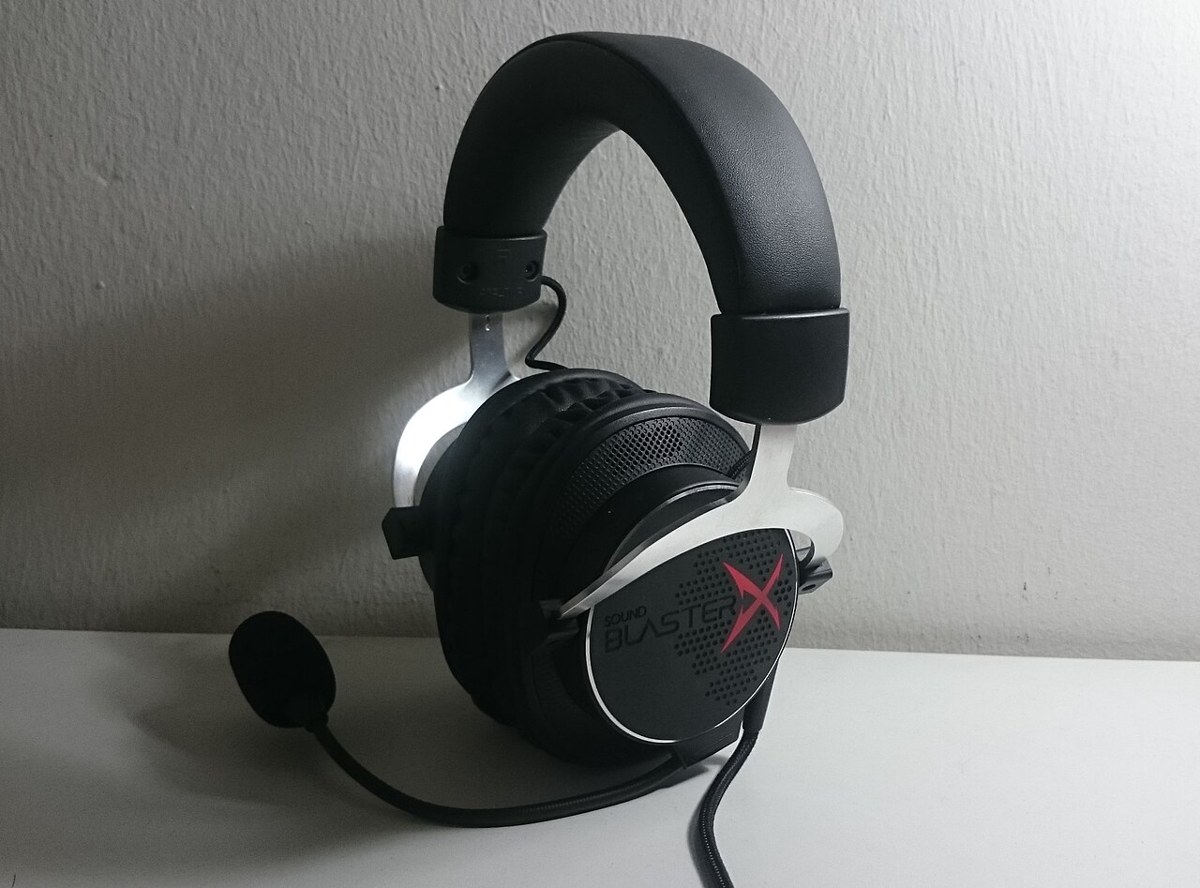
A headset can use an analogue controller jack, USB, a wireless adapter or another platform-specific connection. Compatibility depends on that method and the exact console. A product advertised for PC does not automatically support every console, and two versions of the same headset can include different wireless hardware.
Read the supported-platform list for the precise model and variant. Check whether the cable or adapter needed for your console is included. If the headset can connect to a phone as well, establish whether that connection is for simultaneous audio, switching between devices or only app configuration.
Treat microphone support as a separate check
Hearing game sound does not prove that the microphone works. An analogue headset needs the appropriate combined connection, while some computer arrangements use separate headphone and microphone plugs. An adapter must match the intended wiring and direction; the fact that it joins two connectors is not enough.
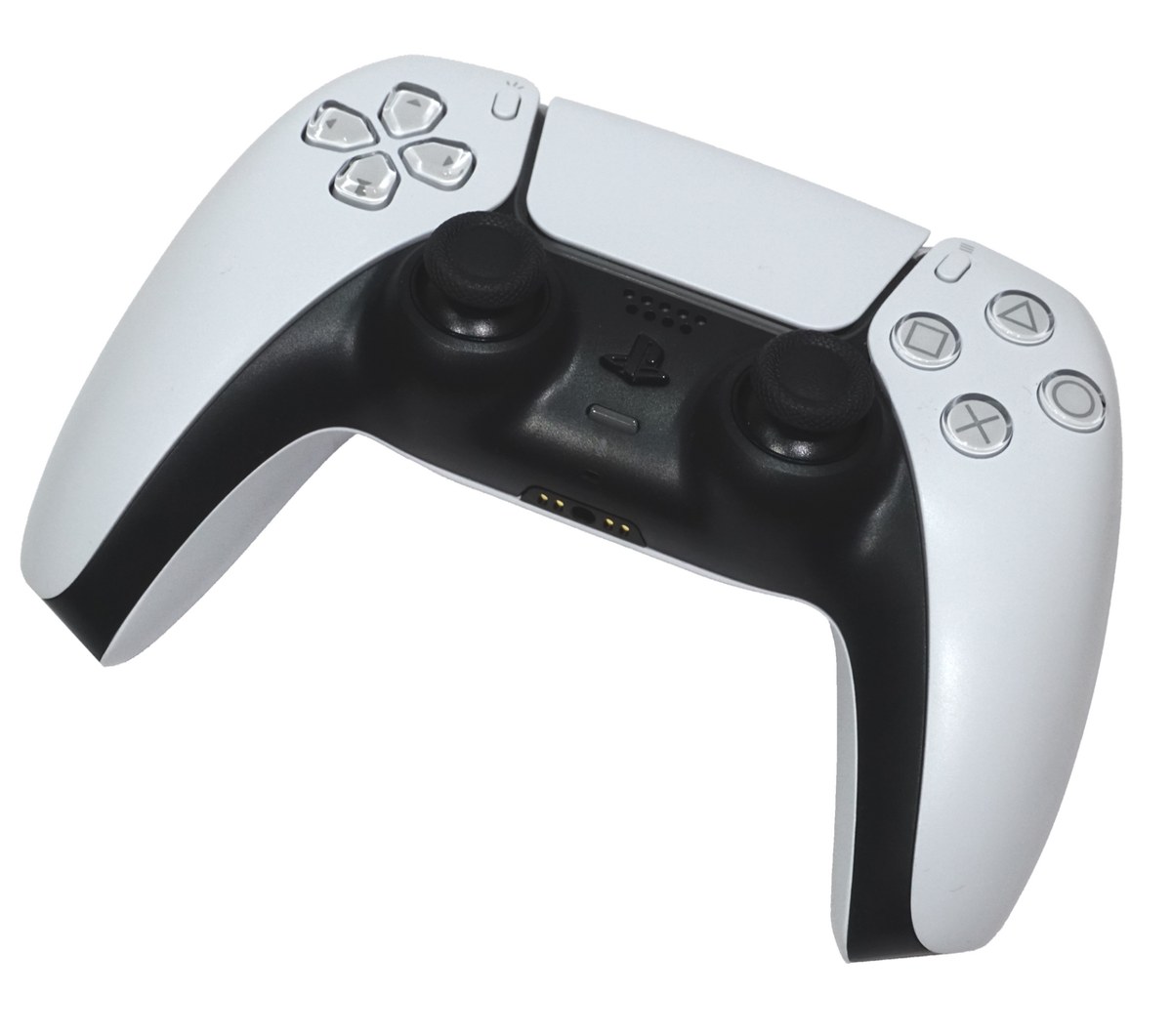
On the console, select the correct input and output devices and test microphone level. Check physical mute switches and any mute state on the controller. Start at a moderate listening volume, then adjust gradually. A very loud headset is not a requirement for identifying game sounds.
For PS5, the audio settings distinguish output device, headphone output and microphone-related controls. Review them after connecting an accessory because automatic output switching may change where sound goes. If chat works but game audio remains on the television, inspect the selected headphone-output behaviour before replacing the cable.
Check the functions you use during play
Test party chat, in-game chat and game sound in the situations you normally use. They may have separate controls. Check whether a game/chat balance control operates on your console; a dial that works through PC software may not offer the same function elsewhere.
If spatial-audio processing is available, avoid applying multiple processing layers without understanding them. Compare the supported option with ordinary stereo in a familiar scene. Keep the setting that makes positioning and speech clear rather than choosing it solely because its name sounds more advanced.
Consider the daily physical details
Try the headset for a realistic session if the seller's terms allow it. Glasses, ear-cup shape, clamping force and microphone position affect use in ways a platform-compatibility badge cannot describe. Check cable length from your normal seat and whether charging can be managed without pulling on the connector.
For a wireless model, test reconnection after the console rests and confirm how low-battery warnings appear. Save the known-working audio settings. A suitable headset is one whose sound, microphone, comfort and controls all work in your actual console arrangement, not merely one that produces a pairing notification.