Understand which machine runs the game
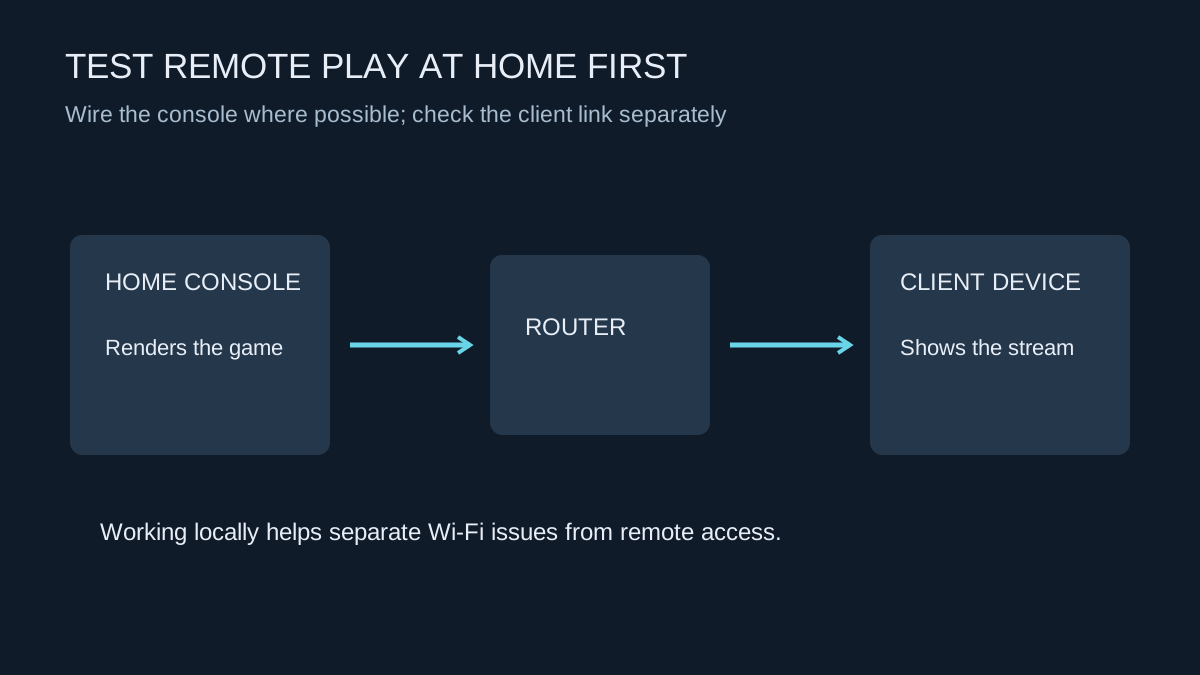
Remote play streams a game from your own console to another device. The console renders it; the client displays the stream and sends controls back. This differs from a cloud service that runs the game on a provider's hardware. Your console, home network and client connection all remain part of the system.
Confirm that the console, app, account and game support the intended arrangement. Some games requiring particular peripherals are not compatible with remote play. Also check controller support on the client device rather than assuming every console accessory works through the stream.
Build the simplest local test
Update the supported app and console software, enable remote play through the official controls and connect both devices to the home network. Wire the console to the main router where practical. Place the client where its wireless connection is strong, or use a supported wired connection for the comparison.
Test a familiar game and check the controls, sound and picture. If the session is unstable locally, solve that before changing internet-router settings for use away from home. Pause large transfers and compare the client near the access point with the room where you normally intend to play.
Check the console's supported rest-mode and network settings if you want to start a session without turning it on manually first. Do not assume the correct setting is active simply because the console can download updates in the background. Test the actual wake-and-connect sequence.
Separate remote access from local quality
Once local play works, test from the external network you plan to use. Both ends now matter: the home connection sends the stream out, and the remote connection receives it. A fast download at home alone does not describe this path. Mobile coverage, network restrictions and routing can change the experience substantially.
Use the platform's connection troubleshooting and note any NAT or error information it reports. Do not begin by exposing the console through an indiscriminate router DMZ or disabling security controls. Follow documented requirements and ask the provider about network restrictions when necessary.
If local sessions work consistently but external ones fail, that distinction is valuable evidence. Record the client network type, error message and whether a second external network behaves differently. It narrows the problem much more than repeatedly reinstalling the game.
Keep a short fault record
A useful record might say that local play works over a wired console connection, the client works near the router, and the same client disconnects on one external Wi-Fi network. That description separates the successful components from the failing situation. A screenshot of a generic error alone cannot do that.
For intermittent failures, note whether the console was already awake or being started remotely, whether another household transfer was active and whether reducing stream quality changed anything. Preserve the exact error code. Then change only the part suggested by the evidence; repeatedly removing and recreating the account pairing may conceal a network problem without resolving it.
Tune the stream for the connection
Where the app offers quality settings, compare a lower resolution or frame rate when the connection struggles. That changes the stream workload; it does not make an unsupported controller or game compatible. Keep the setting that provides readable detail and predictable controls for the type of game you play.
Watch mobile data use during a trial before starting a long session. Keep account sign-in protected on a borrowed client and sign out when finished. A remote-play setup is ready when it can connect, respond and recover predictably in the place you actually use it, not merely when the initial pairing succeeds beside the router.