Give the screens different jobs
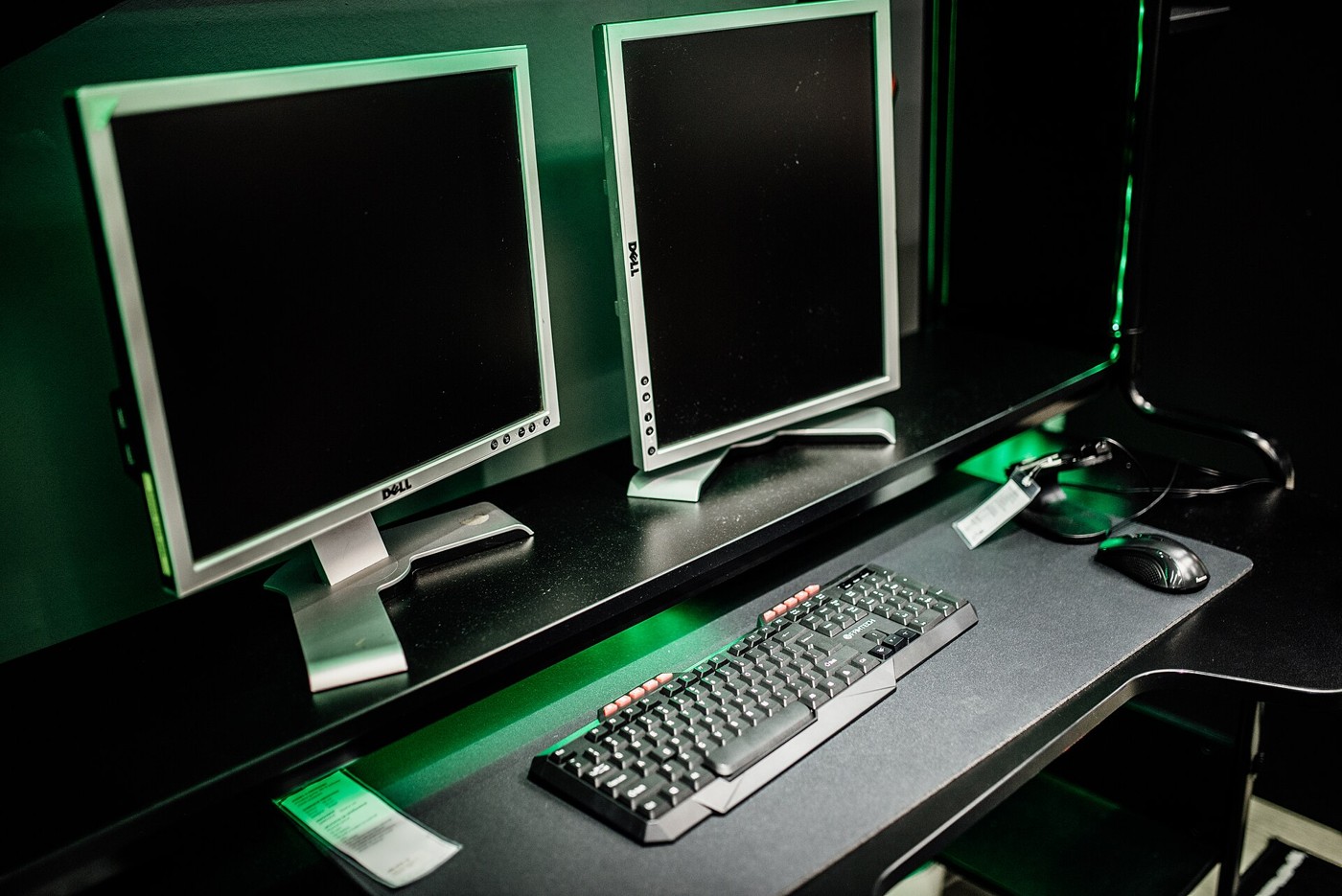
Put the game on the display directly in front of your normal sitting position. Use the second screen for chat, a guide or streaming controls that you glance at occasionally. Centre the keyboard and chair on the main screen, not on the join between two panels. Otherwise you may spend the whole session turned towards the game simply to make the desk look symmetrical.
Keep the secondary display close enough that reading it does not require a large movement. Its height and angle can differ from the main display. A portrait orientation may suit chat, but check that the stand or arm supports it and that cables have enough slack. If you spend equal time on both screens for another task, you may want a different arrangement for that activity.
Make Windows match the desk
In Windows display settings, identify the monitors and arrange their on-screen rectangles to match their physical positions. Select an extended desktop when you want separate content. Duplicating the screens shows the same image on both and can constrain the available display mode. Set the intended game display as the main display where appropriate, then verify where the game actually opens.
Check each screen's resolution, scaling and refresh rate separately. Different pixel densities can make a window change apparent size as you move it between screens. Adjust scaling for readable text rather than forcing identical numbers. If a display is missing, check its selected input and connection before changing more complex settings.
Test a normal session
Launch the game and the chat application together. Move the pointer between screens, use the game's chosen full-screen or borderless mode, and check how it behaves when chat receives focus. Some games minimise or pause; others continue. Learn that behaviour before relying on the second screen during a match.
Video playback, browser animation or recording on the second display can add system work. If you notice stutter, test with that activity stopped rather than immediately blaming the monitor. Keep private messages and account information away from any captured display when streaming. A second screen is useful because it separates tasks, but the separation only works when the physical arrangement, operating-system layout and capture settings agree.