Find out what the game actually saves
Game installations and game saves are often stored in different places. Copying a large installation folder can preserve downloadable assets while missing the small files that contain weeks of progress. Start with the developer's support information for the particular title. Find the save location, whether it depends on an account, and whether separate configuration files are worth keeping.
Some games maintain progress primarily on their servers. Others keep local saves, and some use a mixture. A local backup cannot reconstruct a server-side account or grant access to a different edition. Record the account and edition involved before moving anything, especially when switching between storefronts or generations of a game.
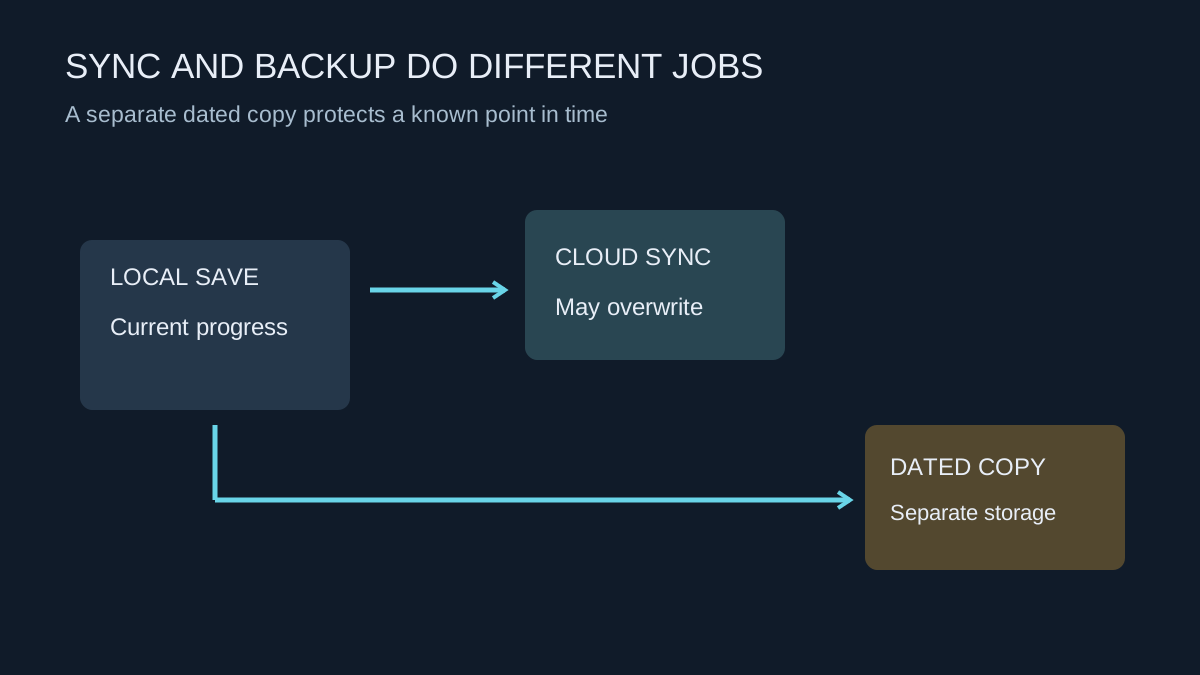
Cloud synchronisation is useful, but it is not a dated archive
Steam Cloud support is chosen and configured per game. Check that the title supports it and that synchronisation has completed before switching computers. An out-of-sync warning should be resolved deliberately; launching anyway can leave you deciding between two different versions of progress later.
Synchronisation generally tries to keep devices aligned with current data. That is not the same as keeping a separate historical copy from before a mistaken deletion, a mod experiment or an unwanted save. A dated backup gives you a known earlier point to examine, provided the game supports restoring that data.
Before making the copy, exit the game normally and allow any launcher activity to finish. Copy the documented save files to a separate location and label the folder with the game, account identifier where useful, and date. Do not include passwords or recovery codes in an ordinary save archive.
Give the backup somewhere independent to live
A second folder on the same drive helps against an accidental overwrite of the working save, but not against failure of that drive. Keep another copy on separate storage or an appropriate backup service. If using a cloud file service, check that the copy has uploaded rather than assuming that moving a folder into a sync directory finished the job.
Avoid having two synchronisation systems independently manage the live save folder unless the game and services explicitly support that arrangement. Conflicting versions can be harder to understand than a straightforward manual archive. A copy taken after play is simpler to reason about than redirecting a live folder into an unfamiliar synchronisation workflow.
For heavily modded games, record the mod list and game version beside the backup. A save can depend on content that the replacement installation lacks. Keeping the configuration information makes a future restore less of a guessing exercise, without implying that every older save will remain compatible with every later patch.
Plan the migration in two stages
Make an archive before changing the old computer, then make a second copy after the final intended playing session. Label them clearly. The first protects the pre-migration state; the second includes the latest progress. Keep both until the new installation works, rather than overwriting the only archive each time you experiment.
On the new computer, install the correct edition and follow the game's supported restore or sync route. Do not merge folders from two accounts just because their filenames look alike. If the game creates a fresh save when first launched, preserve that separately while checking the restore instructions. A blank new save should not accidentally become the version synchronised over the useful one.
This staged approach also makes support questions clearer: you can identify which copy came from the old working installation and which was created during setup.
Test recovery without destroying the current state
Read the title's restore procedure before replacing files. First preserve the current save, even if it appears damaged. If cloud synchronisation could replace the restored copy, follow the game's documented advice for handling it. Do not arbitrarily choose the newest timestamp when you know the newest session contained the mistake you want to undo.
A small recovery test can be worthwhile before a major computer migration: establish that the archive contains the expected files and that the supported restore process recognises the intended progress. Where testing would overwrite the only working save, stop and obtain title-specific instructions instead.
Keep the old computer or original archive until the new setup has loaded the correct progress and completed a fresh save successfully. Opening the main menu is not enough. Check the character, level or campaign you intended to preserve, then make a new dated copy from the working configuration.