Read the number as an interval
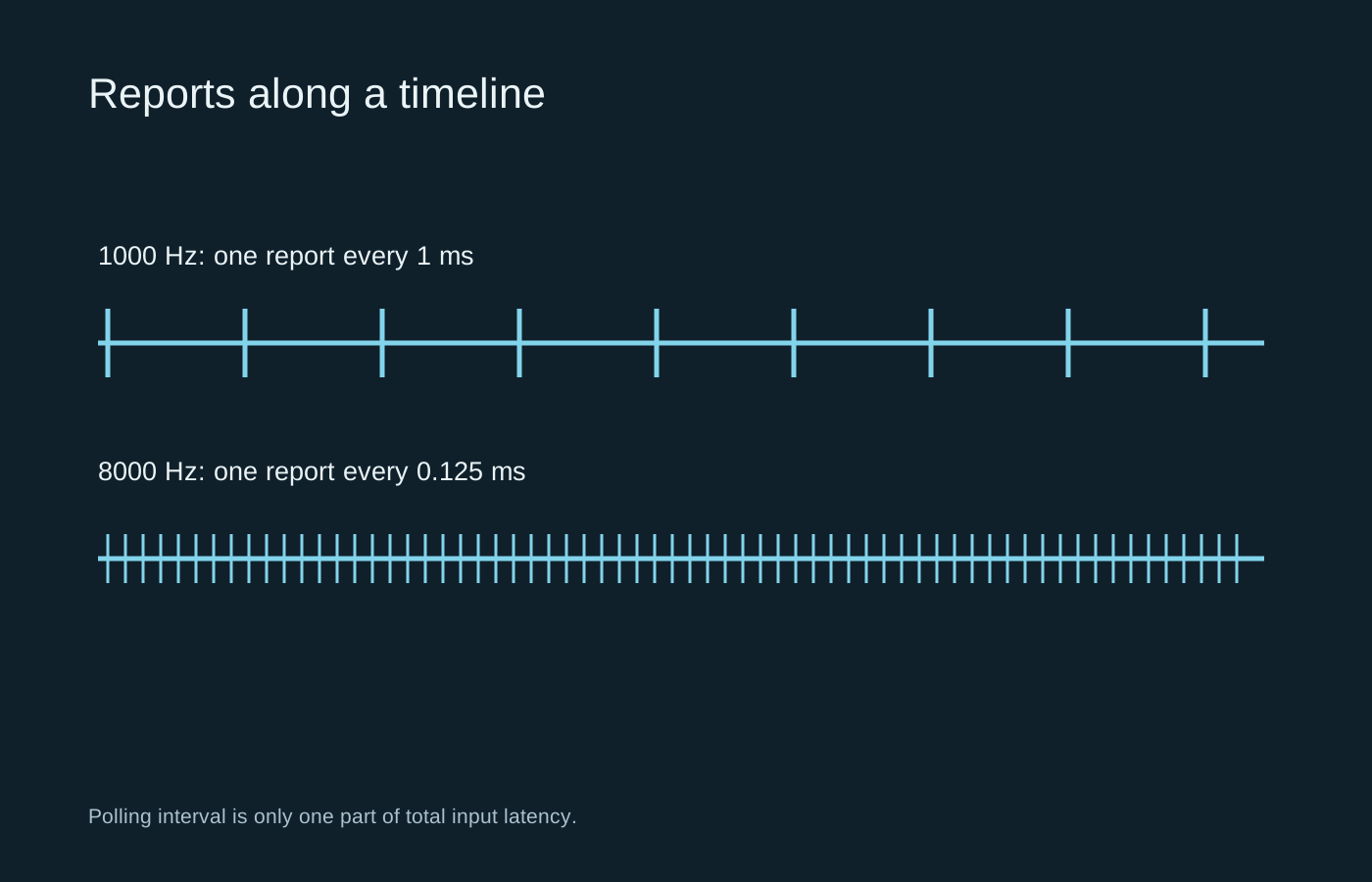
Polling rate describes how often a mouse reports information to the computer. At 1000 Hz, reports are spaced about one millisecond apart. At 8000 Hz, that interval is 0.125 milliseconds. These are report intervals, not a promise that your click will appear on screen in that time.
The switch, sensor, connection, game engine, render queue and display all contribute to the result. Replacing one interval with a smaller one cannot erase delays elsewhere. A mouse can also offer different maximum rates in wired and wireless modes, or require a particular receiver for its highest setting.
Try it under the conditions you actually play
Use a repeatable scene with steady movement. Keep DPI, sensitivity, graphics settings and the frame-rate cap unchanged. Compare a normal report rate with a higher one, paying attention to consistent camera movement and frame-time spikes while moving the mouse. A stationary benchmark may miss input-related overhead.
Higher rates require the system to handle more reports. Corsair explicitly notes the additional CPU cost of high polling rates. The effect varies with the game and computer, so a setting that behaves well in one title may be unhelpful in another. If a higher setting introduces stutter, reducing it is a reasonable troubleshooting step rather than an admission that the hardware is inadequate.
Wireless battery endurance can also change. Check the manufacturer’s conditions for quoted battery life: lighting, report rate and connection mode may all matter. A charging routine that becomes inconvenient is a real trade-off, even when a numerical difference looks attractive.
Put the smaller interval in perspective
Moving from 1000 Hz to 8000 Hz reduces the nominal interval from 1 ms to 0.125 ms, a difference of 0.875 ms. That subtraction describes the interval, not a guaranteed reduction in click-to-display latency. The instant at which an action occurs within the reporting cycle also matters. Keep the arithmetic separate from a claim that every action will appear a fixed amount sooner.
If two profiles feel different, repeat the comparison without changing DPI or a game-specific sensitivity profile. Some configuration software switches several values together. Verify the settings actually applied after launching the game, especially when a default desktop profile and an automatic game profile coexist.
Keep the comparison honest
A browser polling checker can help show that a rate is broadly working, but it is not an end-to-end latency test. Browser scheduling and how quickly you move the mouse affect the reading. Do not interpret an uneven online graph as proof that a sensor is defective.
Save a dependable baseline profile. If you cannot notice a benefit and the higher rate adds battery use or compatibility problems, retain the lower setting. The useful result is stable input in your own games, not the largest value the configuration screen will accept.