Identify the exact controller
Find the model name or number before choosing instructions. Different revisions in the same controller family can support different wireless methods. A controller associated with a console is not automatically limited to that console, but neither is every connection or feature guaranteed on a PC.
Check the operating system and the game’s official controller information. Basic buttons and sticks, vibration, motion input, headset audio and special trigger effects are separate capabilities. Sony explicitly notes that DualSense support varies by PC game and that some features may require a USB connection.
Establish a wired baseline
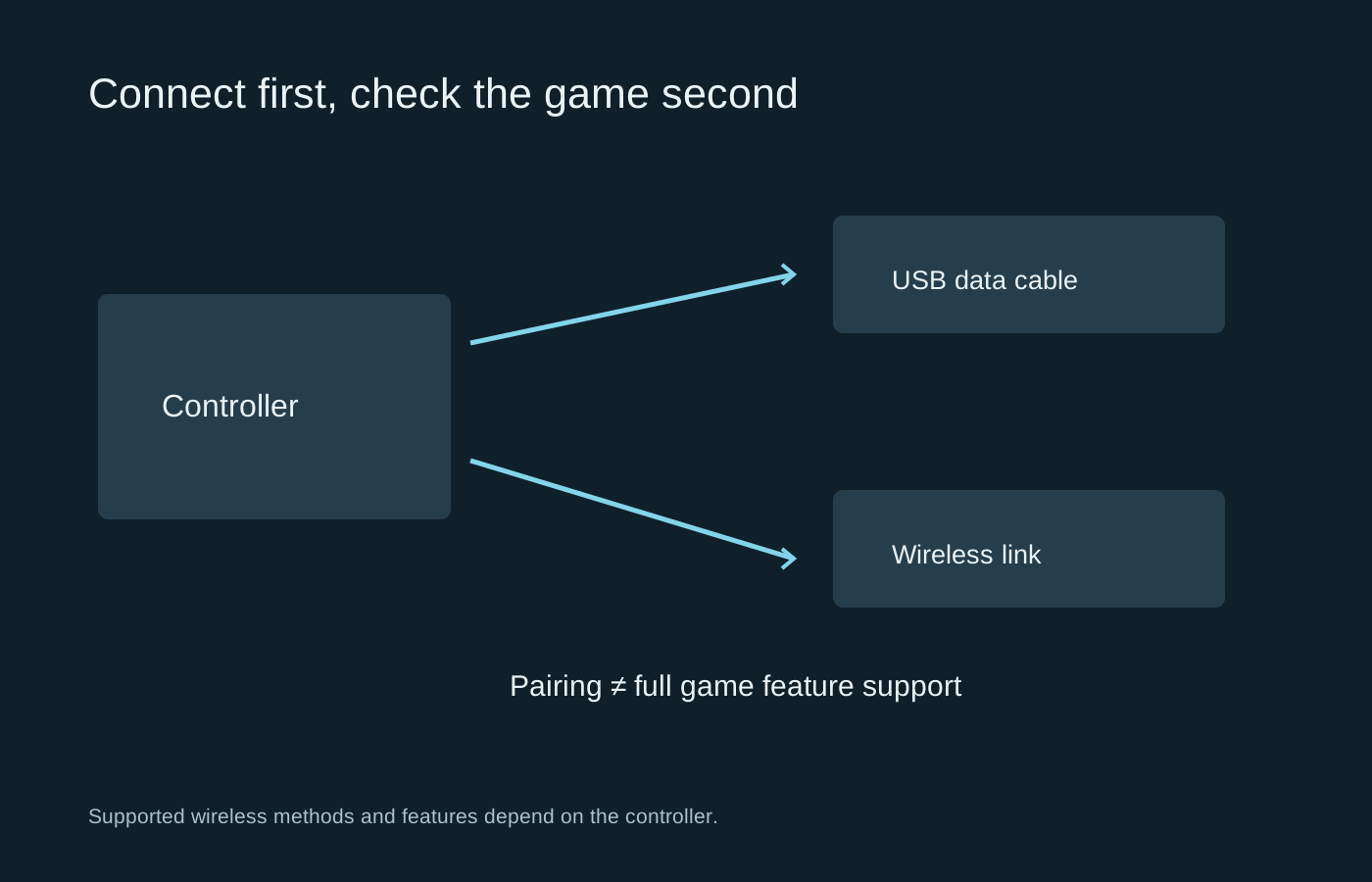
If the model supports USB data, connect it using a suitable data cable and the manufacturer’s recommended procedure. A charging-only cable can power the controller without allowing the computer to see it as an input device. Try a known data cable before assuming the port or controller is faulty.
Check recognition in the operating system or official controller application, then in a game that supports it. Test sticks, triggers and buttons. Keep other controllers disconnected during this first check to avoid an unexpected player assignment or input conflict.
Use official firmware tools when an update is needed. Read the instructions before starting and do not disconnect during the update. You do not need a collection of third-party controller utilities simply to establish whether the device works.
Add the intended wireless connection
Bluetooth pairing and a proprietary wireless adapter are different arrangements. Follow the instructions for the model and adapter you have. Make sure the PC actually has the necessary wireless hardware and that any desktop antenna is connected as specified by the computer or motherboard maker.
Remove stale pairing entries only when the troubleshooting procedure calls for it, then pair again deliberately. If the controller reconnects to another device nearby, check its device-switching behaviour. Keep a charged battery and a working wired option available while testing.
Choose how the game receives input
Some games recognise a controller directly. Steam Input can provide another configuration path, including translations and remapping for supported devices. Running several translation tools at once can produce duplicate inputs or confusing prompts. Begin with the simplest supported path and add another layer only to solve a specific limitation.
For a game with native support for advanced controller features, read its instructions before overriding that path. A translated generic controller signal may behave differently from native recognition. Test the features you care about individually rather than assuming that a working menu confirms everything.
If button prompts look wrong, check whether the game allows a prompt style selection. Some games always show one family of symbols even when another controller works. That can be a display convention rather than a connection fault.
Save a working configuration
Record the connection mode, game input setting and any active profile. If a later problem appears, return to that combination first. Test one change at a time: cable, port, wireless connection, profile and game configuration are separate variables. A clear baseline turns a vague controller-does-not-work complaint into a much shorter investigation.